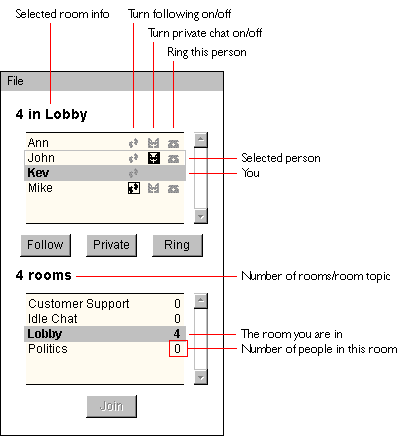
The panel has two parts: the upper part which displays a list of the people in a particular room, and the bottom part, which displays a list of the rooms currently on the server and the number of people in each room. Above the each part is a small status bar - the upper bar tells you how many people are in a particular room and what the name of the room is, and the bottom bar tells you how many rooms are on the server. As you move your mouse over the room list, the bottom status bar displays the topic of the room the mouse is over.
In each list is a bolded item above a filled gray bar. This represents you - in the user list your name is displayed in bold, and in the room list the room you are currently in is displayed in bold. By clicking once on any item, you select it, and a gray border appears around it. Every time you select a room from the room list, the list of people changes to reflect your selection. In this way you can see who is occupying different rooms.
Performing Actions
To the right of each name are three icons:
- A follow icon, a picture of a pair of footsteps. Selecting this icon allows you to follow or not follow this person. If you follow a person, they can type an Internet address and the Web page will appear in your browser.
- A private icon, a picture of a pair of faces looking at each other. Selecting this icon turns on private chat for this person. When on, everything you type in the text entry field will be automatically sent privately to this person. Turn it off in order to chat publically again.
- A ring icon, a picture of a telephone. Click on the icon once to ring this person (you may need to hold the mouse down briefly). This person will be notified with an alert sound and text.
When an icon is selected, it turns black and a black border appears around it.
To join a room, click two times on a room name - once to select it and one more time to join it. You will leave your current room and join the new room. If you click on the name of a person twice, information on this person will appear in the chat area.
You can also join a room by selecting a room and pressing the "Join" button below the room list. All of the actions that can be performed using the icons can be performed by pressing on the respective buttons below the list of people.